
Install SenderFinder
The Chrome Web Store listing isn't live yet, so you load the extension from source. Two minutes, once per browser.
You need Chrome, Edge or another Chromium browser on a desktop; extensions can't be added to the mobile apps. The screenshots are in English, the extension itself follows your browser language.
Privacy at a glance
- The key you paste is stored in the extension's own storage on this device and is sent only to that provider's API, with the lookups you run.
- Lookups go directly from your browser to the provider you configure — no SenderFinder server in the lookup path. Anonymous daily usage counts are on by default and can be switched off in settings.
- Remove the key in settings at any time — without a key no paid lookup can run — or uninstall the extension, which deletes its storage.
Five steps
-
1
Get the code
Download the repository as a ZIP from GitHub (“Code” → “Download ZIP”) and unpack it, or clone it if you have git:
git clone https://github.com/astonysh/SenderFinder.git -
2
Load it in Chrome
Open
chrome://extensionsin a new tab. Switch on Developer mode (top right), click Load unpacked and pick theextension/folder inside the repository — the folder that containsmanifest.json, not the repository root.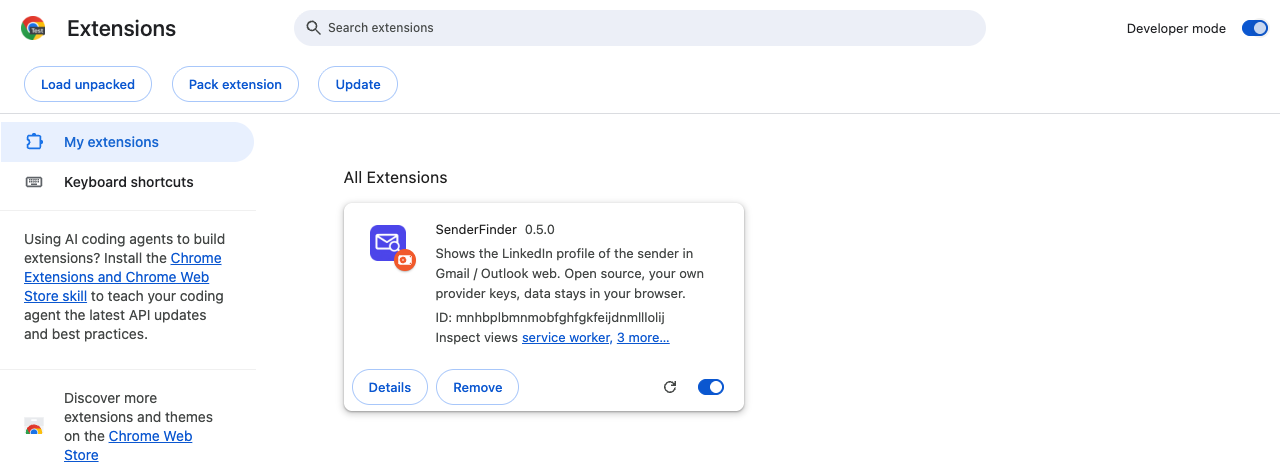
Developer mode on, the SenderFinder card loaded. -
3
Get one key and paste it
The settings page opens by itself after installation. Create a key at Monid (Hunter, Apollo, ContactOut) or treg (BlitzAPI, QuickEnrich, Village); Firecrawl is optional. One key is enough. Paste it under “Provider keys”.
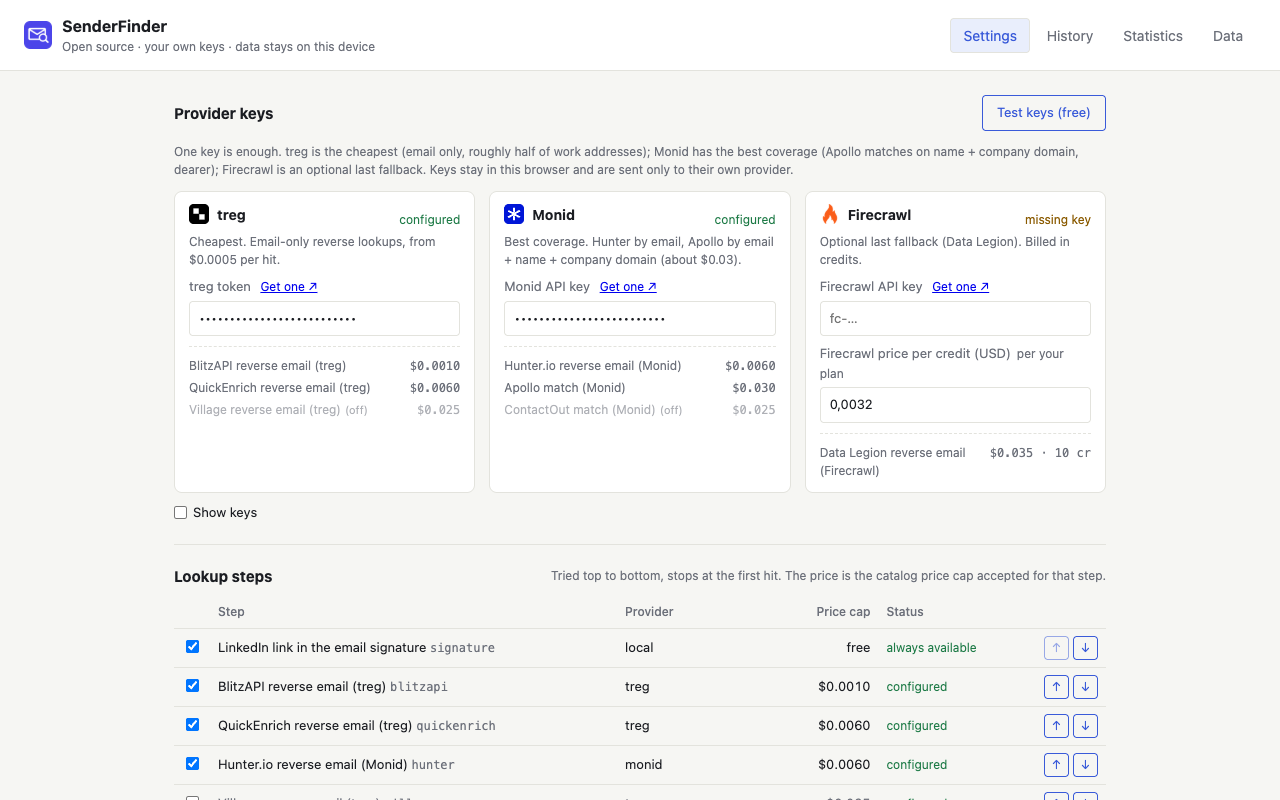
Settings on first install: keys at the top, steps and prices below. -
4
Press “Test keys (free)”
The check is free: it verifies the key and reads the provider's price list. Nothing is looked up and nothing is spent. You want “valid” next to your key.
-
5
Open Gmail and click the toolbar icon once
Open any message in Gmail, then click the SenderFinder icon in Chrome's toolbar. If you can't see it, click the puzzle-piece icon and pin SenderFinder first. The side panel opens and stays open in that tab; from then on it follows the email you read.
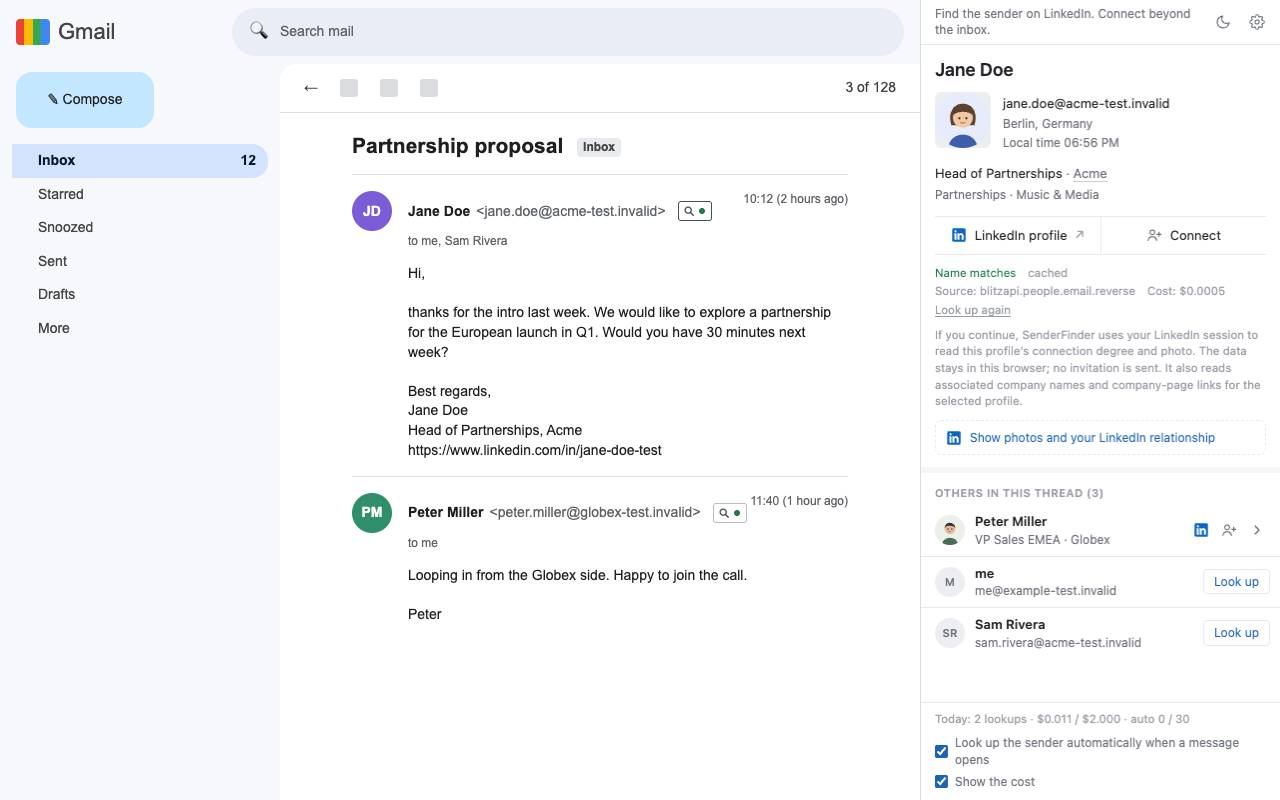
After the first click the panel stays open in this tab.
When the Chrome Web Store listing is live, this page becomes a one-click install; until then the steps above are the only way in.
Which key should I pick?
One key runs the whole flow: steps without a key are skipped silently. This table is the short version of the provider comparison in the README.
| Key | Steps that run | Price per hit | Coverage in the benchmark | Good for |
|---|---|---|---|---|
 treg treg | BlitzAPI → QuickEnrich (optionally Village) | $0.0005–0.005 | roughly half to 60 % of work addresses | tight budgets, high volume |
 Monid Monid | Hunter → Apollo (optionally ContactOut) | $0.005–0.026 | Apollo matched 19 of 19 calls | hit rate |
| Both | the full chain: BlitzAPI → Hunter → QuickEnrich → Apollo | averaged $0.011 per address | 48 of 50 (96 %) | the default; cheapest step first, Apollo as backstop |
 Firecrawl (optional) Firecrawl (optional) | Data Legion only | 10 credits (≈ $0.008–0.032) | no hit-rate data | not recommended on its own, fallback only |
Apollo, Hunter and ContactOut are called through Monid; BlitzAPI, QuickEnrich and Village through treg. An API key from those data sources directly does nothing here.
If something doesn't work
The side panel doesn't open
Pin SenderFinder first: puzzle-piece icon in the toolbar → pin. Then click its icon once while a Gmail tab is open. The panel never opens by itself, and it is per tab.
The panel says “No key set”
Paste one key in the extension settings. One is enough: the steps whose provider has no key are skipped without an error.
Nothing happens in Outlook
Outlook on the web is best-effort and its markup changes often. If the small mark next to the sender doesn't appear, open an issue with the sender line's HTML.
A gmail.com or info@ address isn't looked up
Personal mailbox domains and role addresses are skipped by default, because they rarely lead to a profile. The panel has a “Look up anyway” button for those.
It stopped looking people up today
Either the daily cap ($2 by default) or the automatic-lookup limit (30 per day) was reached. Both are adjustable in settings; the counters reset the next day.
How do I update it later
Put the new files in the same folder and click the reload arrow on the card in chrome://extensions. The extension id is pinned in the manifest, so keys, cache and history survive.
What next
Read how it works, check what a lookup costs or work out your own volume in the cost calculator. Data questions are answered in the privacy statement.